How do I make an AI talking avatar?
Quick Answer
Upload a clear portrait photo, provide your script as text or audio, select a voice and speaking style, and generate a lip-synced talking avatar video.
Scenario
Building an AI spokesperson video for a product walkthrough where a digital avatar delivers a scripted presentation with natural lip movements.
Best mode
Recommended workflow
AI Talking Avatar for Presentations & Marketing Videos
Produce professional talking-head videos for product demos, sales outreach, and training content at scale.
Recommended workflow
AI Talking Avatar for Presentations & Marketing Videos
Use the answer to choose the right workflow, then move into the matching tool page before generating inside Create.
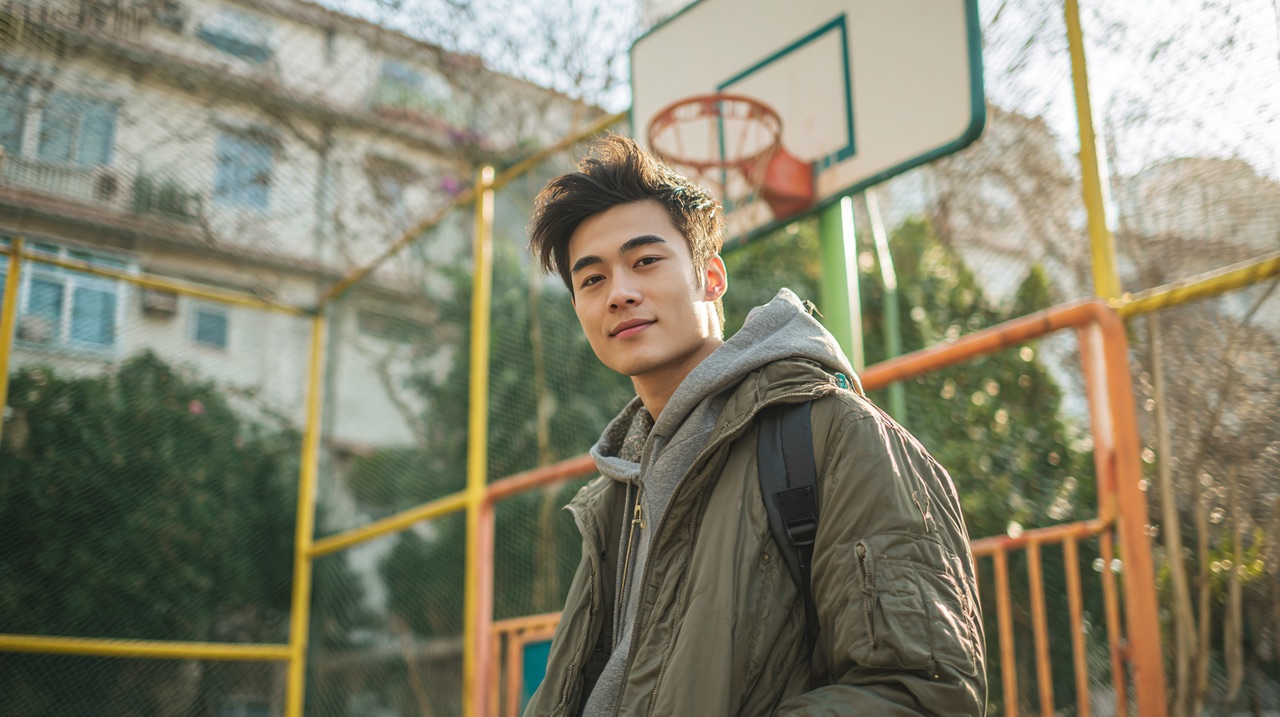
Turn a single portrait photo into a speaking video. HappyHorse Director mode generates natural lip sync, micro-expressions, and subtle head motion from your script — no filming, no actors, no studio.
Step-by-Step Guide
- 1
Prepare a high-resolution, front-facing portrait photo with neutral expression and even lighting.
- 2
Write your script or record audio narration, keeping segments under 60 seconds for best lip-sync accuracy.
- 3
Upload the portrait and script to an AI talking avatar tool, selecting the desired voice, language, and speaking pace.
- 4
Preview the generated avatar and check for lip-sync accuracy, head movement naturalness, and audio clarity.
- 5
Export in your target resolution and format, adding background or lower-third graphics in post-production if needed.
Prompt Template
Create a talking avatar video from this portrait photo. The avatar should speak the provided script in a professional, friendly tone at moderate pace. Add subtle head movements and natural eye blinks.
Common Pitfalls to Avoid
Using a side-profile or heavily filtered photo that confuses facial landmark detection
Writing overly long scripts without pauses, causing unnatural speech cadence
Choosing a voice that does not match the apparent age or gender of the avatar photo
Skipping the preview step and batch-generating without quality checks
Common Questions
Ready to Try It?
Sign up free and get 450 credits instantly. Put this guide into practice instead of leaving it as theory.
450 free credits on signup — no card required
Related Tools
View allAI Talking Avatar for Presentations & Marketing Videos
ai talking avatar
Lip Sync That Looks Natural, Not Uncanny
ai lip sync video
AI Video Generator for Controlled Creative Output
ai video generator
Image to Video AI That Keeps Brand Continuity
image to video ai
HappyHorse 1.0 vs Runway Gen-3 Alpha: Which Fits Your Workflow?
seedance vs runway
Related Questions
View allWhich AI video tool is best for product demo videos?
Ecommerce and SaaS product storytelling across paid and owned channels.
How do I turn product images into video ads?
Catalog-driven ad production for ecommerce products.
How do I keep character consistency in AI video?
Character-led UGC, brand mascot, or storytelling content.