
How to Make AI Video: Complete Beginner Guide for 2026
Learn how to make AI videos from text and images. Step-by-step tutorial using HappyHorse, the #1 ranked AI video generator. Free to start, no experience needed.
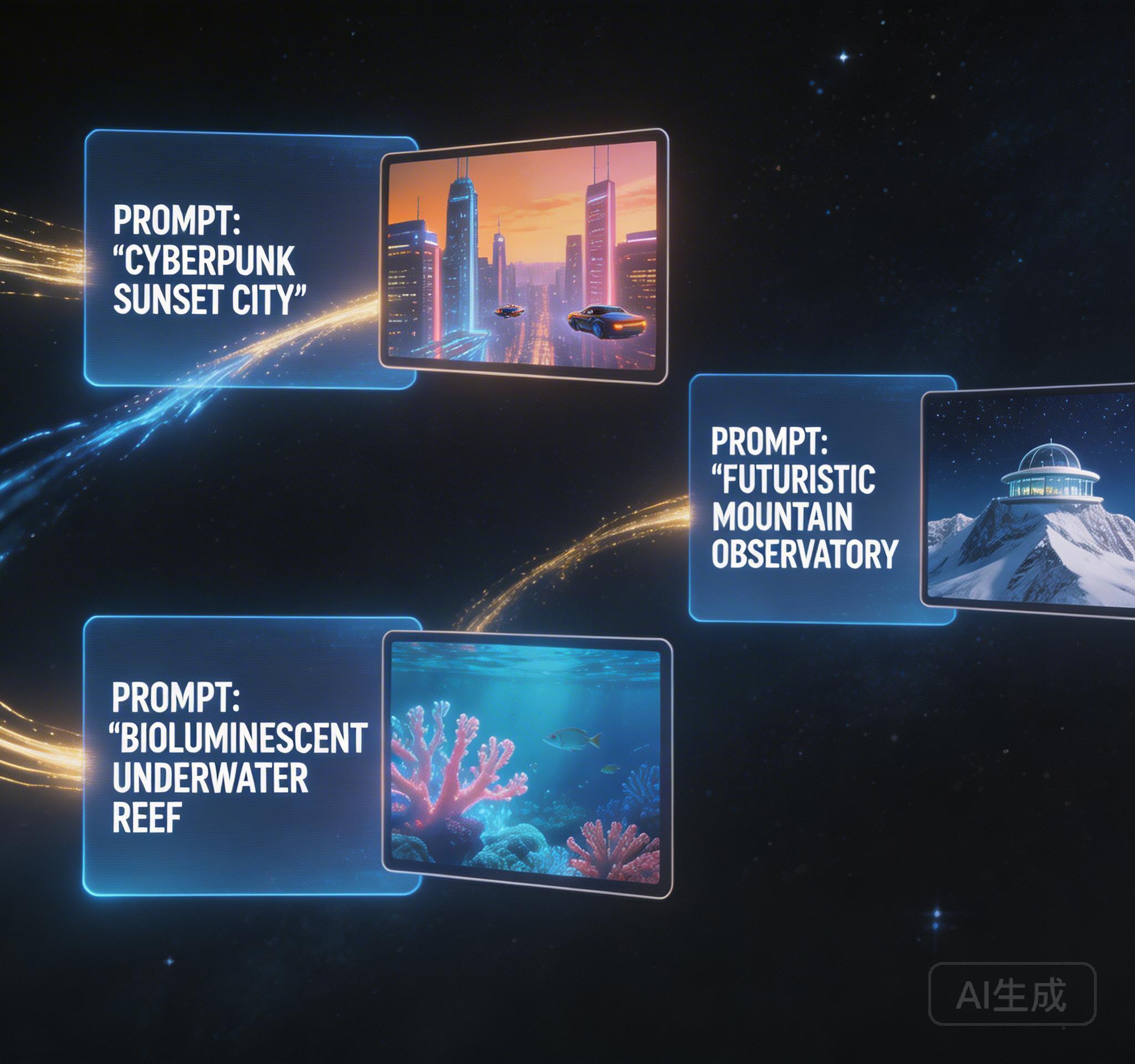
What You Need to Start Making AI Videos
Making AI video in 2026 requires no video editing software, no design experience, and no technical knowledge. All you need is a browser, an internet connection, and an idea. The AI model handles the visual composition, motion, camera work, and timing.
HappyHorse is a free-to-start online AI video generator. New users receive welcome credits automatically upon signup. The entire workflow runs in your browser — no downloads, no GPU requirements, no waiting lists.
Step 1: Write an Effective Prompt
The prompt is the most important input. A good AI video prompt describes four things: the subject (what), the motion (how it moves), the camera (how the shot is framed), and the atmosphere (lighting, mood, style).
Example: 'A golden retriever running through autumn leaves in a park, slow motion, tracking shot following the dog, warm sunset lighting with lens flare.' This gives the model clear direction for every visual element.
- Subject: What appears in the video (person, product, scene)
- Motion: How things move (walking, spinning, flowing)
- Camera: Shot framing (close-up, wide shot, tracking, push-in)
- Atmosphere: Lighting and mood (cinematic, bright, moody, neon)
Step 2: Choose Your Mode and Model
HappyHorse offers three generation modes. Text-to-Video works with prompts only. Image-to-Video lets you upload a reference image for visual control. Multi-Reference combines images, videos, and audio for maximum control.
For beginners, start with Text-to-Video using HappyHorse 1.0 — it is the highest-ranked model on Artificial Analysis and produces consistently strong results across different prompt styles.
Step 3: Set Video Options
Before generating, configure resolution (480p or 720p for most models, up to 4K for Veo 3.1), duration (4–15 seconds), aspect ratio (16:9 for landscape, 9:16 for vertical, 1:1 for square), and audio (on or off).
A 5-second 720p text-to-video generation costs approximately 150 credits. Image-to-video costs slightly more at approximately 180 credits. Credits are refunded automatically if a generation fails.
Step 4: Generate, Review, and Iterate
Click Generate and wait 2–3 minutes. The preview appears as soon as the model returns the video. If the result is close but not perfect, adjust your prompt — try adding more specific motion direction, changing the camera angle, or tweaking the atmosphere description.
Download the video when you are satisfied. Your generation history is saved for 7 days, so you can revisit and re-download previous results at any time.
If you want to start with a photo instead of writing a prompt from scratch, the image-to-video guide at /blog/image-to-video-ai-generator covers all three animation modes in detail. To generate your first video for free without a paid plan, see the free credits walkthrough at /blog/ai-video-generator-free-online.
Try HappyHorse free
Create your first AI video in under 3 minutes. No credit card needed. New users get welcome credits instantly.