
Image to Video AI Generator: Turn Photos into Cinematic Motion
Turn any image into a video with AI. HappyHorse's image-to-video generator supports first-frame, first-and-last-frame, and multi-reference workflows with the #1 ranked model.
What Is an Image-to-Video AI Generator?
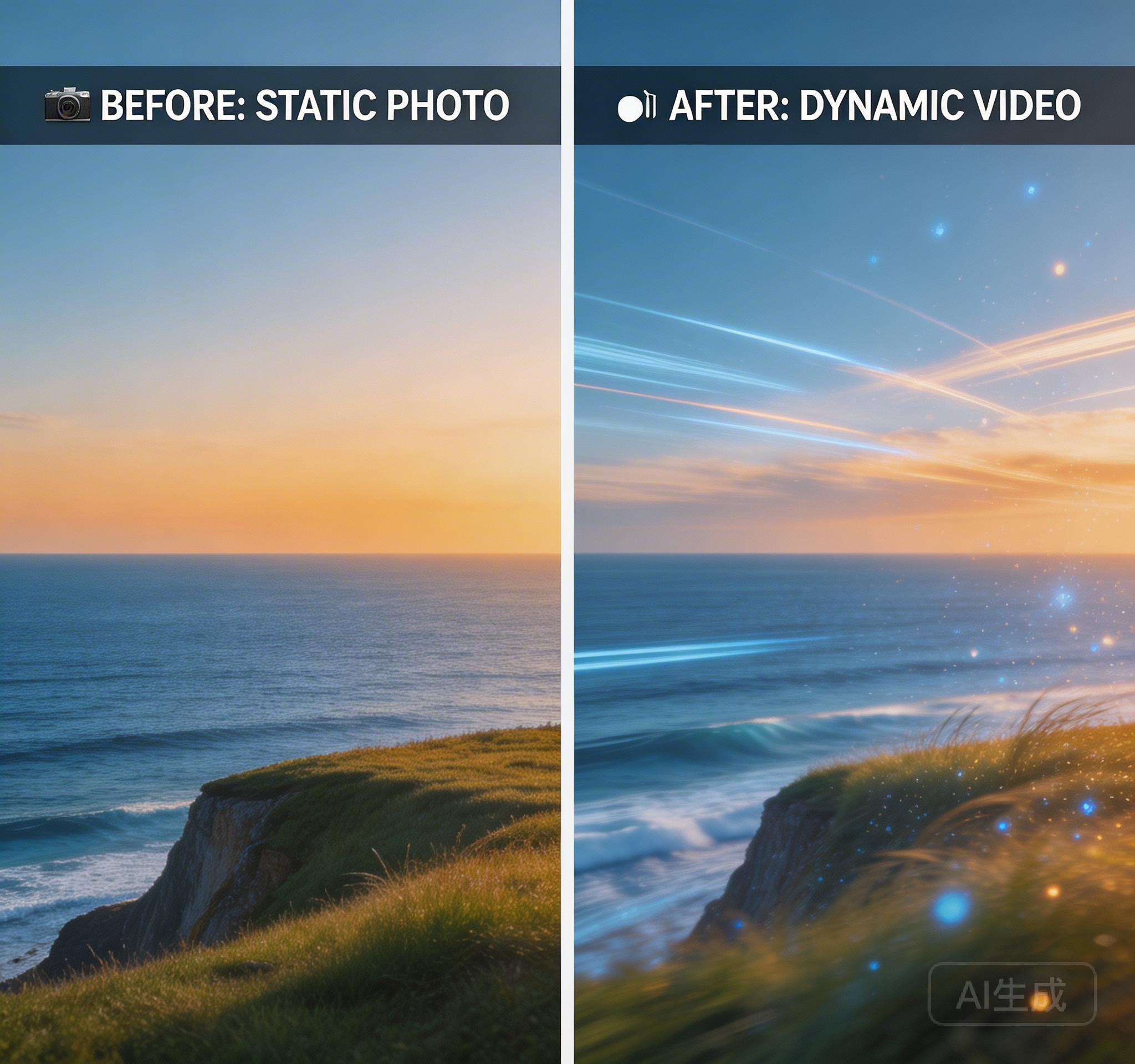
An image-to-video AI generator takes a still image — a product photo, character illustration, landscape, or any visual — and transforms it into a moving video clip. The AI analyzes the image content and generates natural motion, camera movement, and visual effects that bring the still frame to life.
HappyHorse 1.0 currently ranks #1 on Artificial Analysis for image-to-video without audio, with an Elo score of 1391–1406. This means the model produces the most visually coherent and motion-accurate results in blind comparisons against all other available models.
Three Modes of Image-to-Video Generation
HappyHorse supports three distinct image-to-video workflows, each designed for a different level of creative control.
- First-frame mode: Upload 1 image as the starting frame. The AI generates motion from that visual, deciding camera movement and subject animation based on your prompt.
- First-and-last-frame mode: Upload 2 images. The AI creates a smooth transition video between the two frames, ideal for before-after, transformation, and storytelling sequences.
- Multi-reference mode: Upload up to 9 images plus video and audio references. The AI uses all materials to guide the generation, giving you maximum creative control.
Best Use Cases for Image-to-Video AI
Product teams use image-to-video to turn static product photos into engaging demo clips. Marketing teams animate brand assets for social media. Content creators transform AI-generated images into motion content.
The key advantage over text-to-video is control. When you already know exactly what the subject should look like — the product, the character, the composition — starting from an image gives you a much tighter result than describing it in text.
How to Get the Best Results
Start with a high-quality image. The AI works best with clear, well-lit photos at 720p resolution or higher. Add a descriptive prompt explaining the motion you want — 'slow camera push-in with gentle wind effect' works better than just 'make it move'.
Experiment with aspect ratios. HappyHorse supports adaptive, 16:9, 9:16, 1:1, 4:3, 3:4, and 21:9 — choose the one that matches your output platform.
To understand how HappyHorse ranks against other image-to-video models on third-party benchmarks, see the full comparison at /blog/best-ai-video-generator-2026. If you are new to AI video and want to try the generator for free before committing, visit /blog/ai-video-generator-free-online for the free credit walkthrough.
Try HappyHorse free
Create your first AI video in under 3 minutes. No credit card needed. New users get welcome credits instantly.